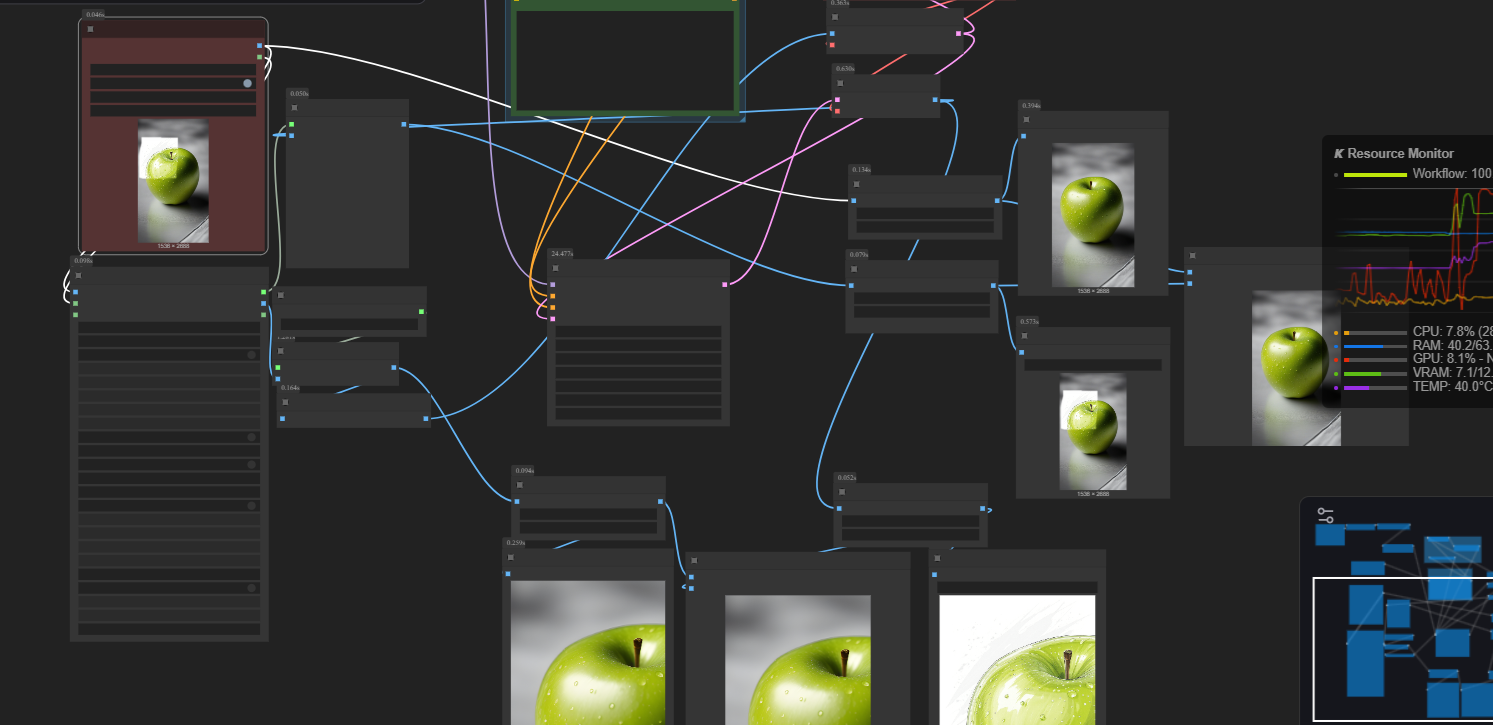
Simple Kontext Inpaint Cropping workflow

About this model
This workflow is designed to focus on a specific region of an image when prompting for changes in the image. You simply open the mask editor and mask the part you want to use. (right click on the "load image" node and select open mask editor")
Version 2 adds better upscaling of the masked portion for much better end results. It also adds both a nunchaku and non nunchaku version. (If you were one of the first 10 people to download version 2, please re-download it or at least replace the Load Image (from outputs) with a regular Load Image node. Comfy somehow automatically changed it during an update).
You can install sage attention and nunchaku by following this person's guide:
www.youtube.com/watch?v=CgLL5aoEX-s
You can mess with the inpaint crop node settings a little, but I found better results by upscaling using an upscaler model after it is cropped, right before it gets resized for flux kontext. The final upscalers don't do as much, just make it bigger. You could probably rescale again here with a model if you wanted to.
Kontext often changes the resolution slightly which results in the final image not matching up correctly. This workflow works best for lora that only change one small part of the image.
Tags
Related Models
Similar AI models you may like
ON-THE-FLY 实时生成!Wan-AI 万相/ Wan2.1 Video Model (multi-specs) - CausVid&Comfy&Kijai - workflow included

【WAN2.1】IMG to VIDEO

ComfyUI Image Workflows
WAN 2.2 Workflow T2V-I2V-T2I (Kijai Wrapper)
Hunyuan 🌻 AllInOne

Moody Simple Zimage Turbo/Distilled Workflow
